Purpose
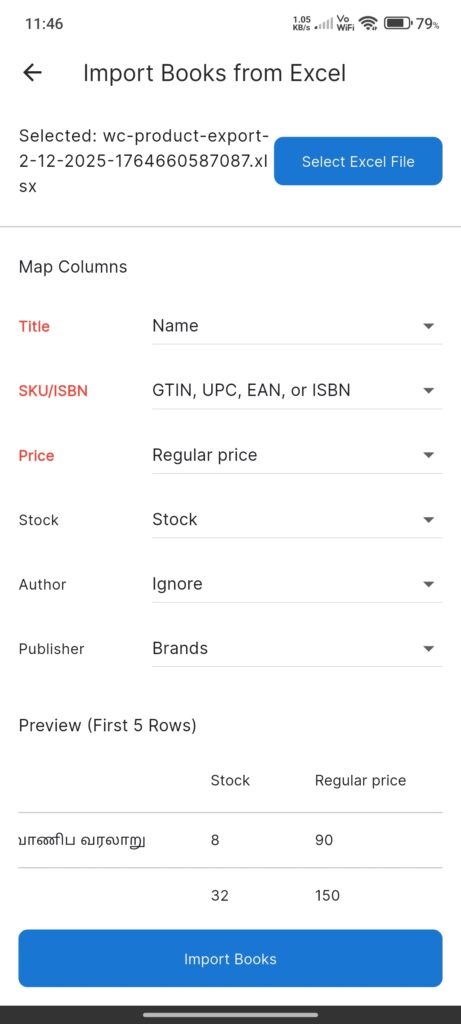
The Excel Import Screen facilitates the bulk addition of books to inventory by parsing an Excel file (`.xlsx`, `.xls`).
Widgets
- File Selection:
- Displays currently selected filename.
- Select Excel File button to open system file picker.
- Column Mapping:
- Automatically attempts to map Excel headers to required Book fields (Title, SKU, Price, etc.).
- Dropdowns allow manual adjustment of mappings.
- Required fields are highlighted.
- Preview:
- A scrollable table showing the first 5 rows of the imported file.
- Import Button: Commits the data to the database.
Interactions
- Pick File: Tap Select Excel File.
- Choose a file from device storage.
- App parses headers and rows.
- Map Columns:
- Review the auto-mapped fields.
- Change dropdowns if headers didn’t match automatically.
- Import:
- Tap Import Books.
- App validates that required fields are mapped.
- Books are created in the system.
- Success message is shown and screen closes.