Purpose
The Purchase Return Entry flow allows users to return purchased items to a distributor. The process involves finding the original bill and specifying quantities to return.
Step 1: Find Purchase
Screen: `PurchaseReturnEntryScreen`
- Search Book: Search for a book involved in the return (by Title or SKU).
- Select Purchase: After selecting a book, a list of all purchases containing that book appears.
- Selection: Tapping a purchase bill navigates to the Details/Confirmation step.
Step 2: Confirm Return Details
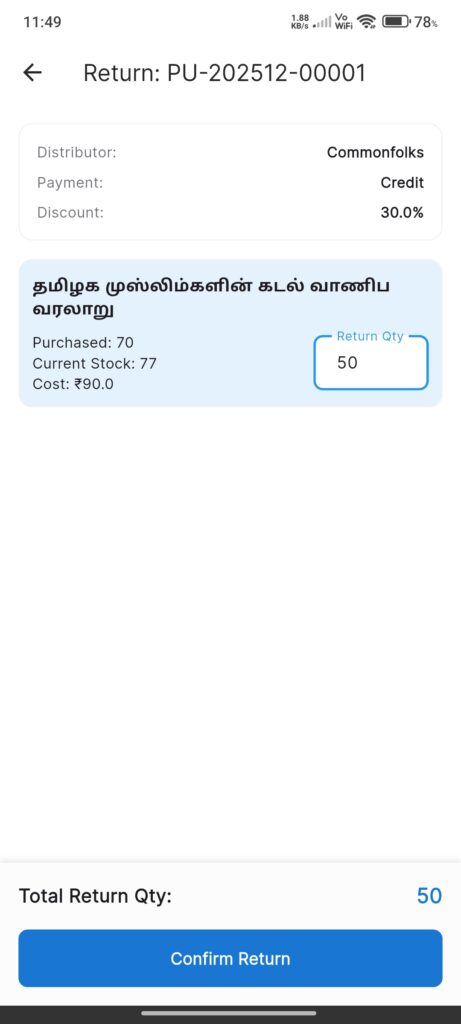
Screen: `PurchaseReturnEntryDetailsScreen` (Class name may match Viewer in code)
- Header: Shows Distributor, Payment Method, and Discount of the original bill.
- Items List:
- Lists all items from the original purchase.
- Return Qty Input: Field to enter how many units to return.
- Default is 0 or limited by current stock.
- Validates that Return Qty <= Purchased Qty AND Return Qty <= Current Stock.
- Summary:
- Displays Total Return Quantity and Total Refund Amount.
- Confirm Button: Processes the return.
Interactions
- Search: Find the book being returned.
- Select Bill: Identify the correct invoice from the history list.
- Enter Quantities: Specify how many of each item to return.
- Confirm: Tap Confirm Return.
- Updates stock (decrements).
- Updates distributor balance (refunds credit or cash).
- Success dialog allows printing or sharing the return receipt.